Live wall
Every guest's photo, live on the big screen
Open the wall link on a Smart TV or smart projector, and the room watches its own photos and videos appear as they are taken.
Waiting for the first photo…
Ava & Luca
Scan to join · code K7Q2XM
The live wall
Photos and videos land on the screen the instant they are taken.
On the screen in three steps
Nothing to install, for you or for your guests.
Live wall
kapture.events/wall/K7Q2XMStep 1
Open the wall link
Copy it from your event dashboard and open it in the browser on any Smart TV or smart projector that is online.
Scan to join
Ava & Luca
kapture.events/e/ava-luca
Open kapture.eventsStep 2
Guests scan and shoot
They scan the code on the screen or on your tables, and the camera opens. No app.
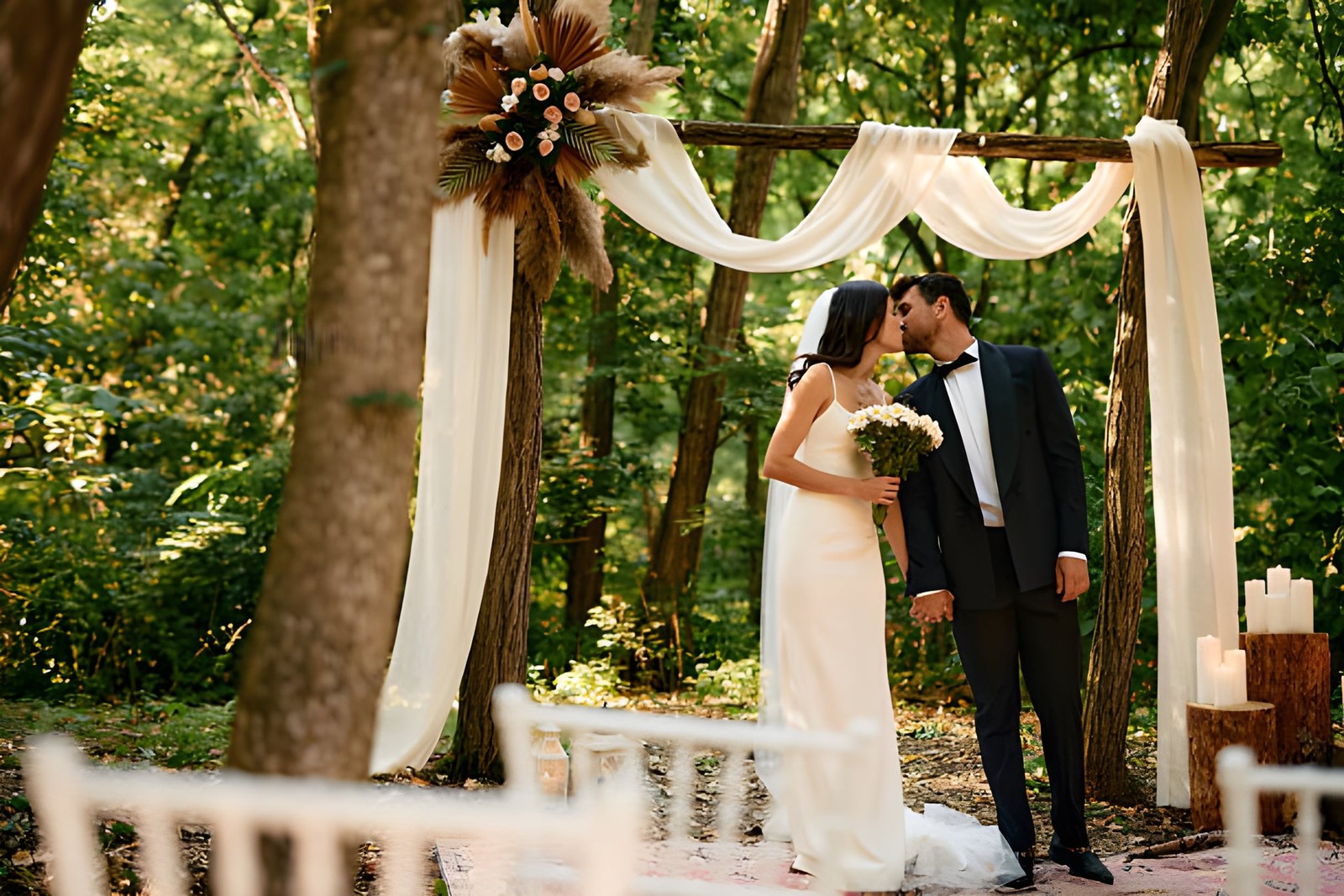
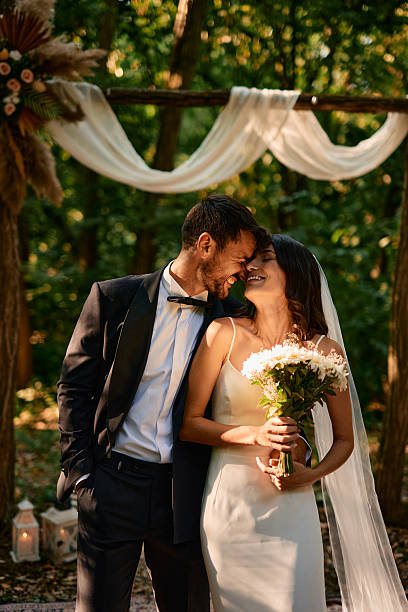

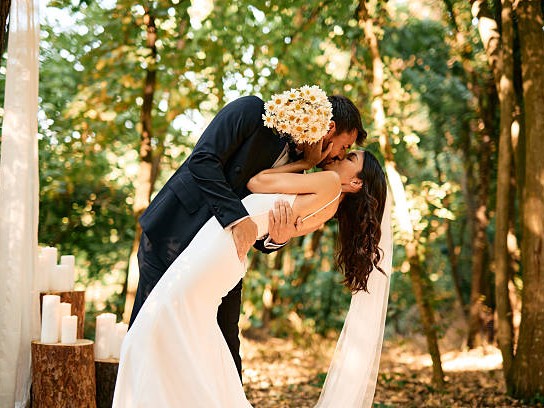

Ava & Luca
Scan to join · code K7Q2XM
The live wall
Photos and videos land on the screen the instant they are taken.
Step 3
Photos appear as they are taken
Every approved photo lands on the screen, for the whole room to see. Videos too, with the Video add-on.
Your wall, your way
Which screen it runs on, how it looks, and what reaches it.
- Smart TV or smart projectorOpen the wall link in its browser. Or use a laptop, connected to a projector or to a TV with an HDMI cable.
- Photos and videosBoth appear on the wall as they come in. Video is an optional add-on.
- Collage or slideshowTwo rows of five, turning through every photo, or one at a time filling the screen.
- Approve first, if you likeTurn off Approve automatically and nothing reaches the wall until you say so.
- Always movingThe wall loops through every photo while nobody is shooting, and marks new ones as they arrive.
- For Open eventsThe wall shows photos as they are taken, so Delayed and Private events have no wall.
Waiting for the first photo…
Ava & Luca
Scan to join · code K7Q2XM
The live wall
Photos and videos land on the screen the instant they are taken.
NewAva & Luca
Scan to join · code K7Q2XM
The live wall
Photos and videos land on the screen the instant they are taken.
Copy the wall link from your event dashboard and open it in the browser on a Smart TV or smart projector. No browser on the screen? Open the link on a laptop and connect it to a projector, or to a TV with an HDMI cable. Whichever you use, it needs an internet connection.
Turn off Approve automatically in your event settings, and every photo and video waits in your dashboard until you approve it. Nothing reaches the wall or the album first. The setting can be changed at any time, even while the event is running.
No. Guests use the same QR code and camera link as always, and take photos exactly as they would without a wall. Each approved photo appears on the screen as well as in the album. There is nothing extra for them to open, install or switch on.
Photos always do, and videos appear on the wall too when the event has the Video capture add-on. Voice messages never play on the wall: they always wait for your approval, and are heard only in the album, if you allow it. Only approved items are shown.
No. The wall runs on Open events, where guests see each photo as soon as it is approved. Delayed and Private events keep the album hidden, and a screen in the room would give that away, so they have no wall. Choose Open if you want a wall at your event.
Ready to bring your event to life?
Have your live wall ready before your first guest arrives.
Or see it for yourself. Try the camera